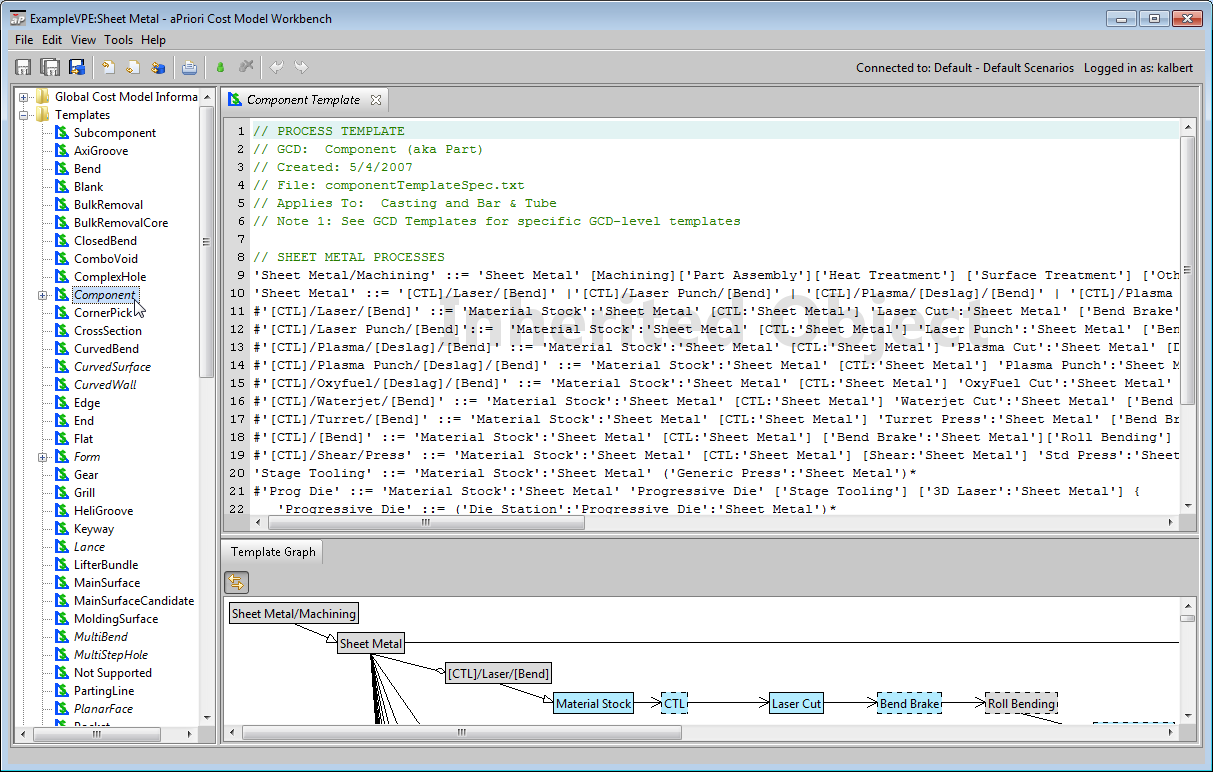
The example in this section shows how to modify the templates in the Sheet Metal process group in order to incorporate routings for the sample, custom process AbrasiveCut (see Adding a New Process to a Process Group).
When you add a new process to a cost model, you typically add associated operations as well.See the following sections:
For more information on templates, see Working with Templates in Working with Cost Model Logic.
Navigating to and Modifying Templates
Follow these steps to navigate to and modify the template for a given GCD type:
-
In the navigation pane, expand Templates.
Double click the desired GCD type. The template text appears in the editing pane. (A graphical representation of the template may appear in the bottom part of the editing pane. Show Info Panel in the View menu controls its visibility. You may have to drag the top border of the Info Panel up from near the bottom of the editing pane to make the Info Panel contents visible.)
-
Select Override Object from the Edit menu, or click the override icon,
 , in the toolbar.
 -
Modify the text of the module in the editing pane.
-
Select Save from the File menu, or click
 in the toolbar, to save your changes.
 -
To incorporate your changes into the cost model, select Publish Cost Model and Digital Factory from the File menu, or click
 in the toolbar.